
Support Center · How-To Guides
Freedom Tech Connect Help
Your office’s calls, voicemail and faxes in one place, on the web and in Microsoft Teams. Here’s how to get the most from it.
Getting Started
Up And Running In Four Steps
Connect works in your browser, in Microsoft Teams, and on your phone. There’s nothing to install unless you want to.
Sign in
Go to connect.freedomtech.us and sign in with your work Microsoft 365 account, the same one you use for Outlook. There is no separate password.
Or open it in Teams
In Microsoft Teams, open Phones & Fax in the bar on the left (or Apps, then search for Phones & Fax). It signs you in automatically.
Add it to your phone
On the Help page in Connect, scan the code with your phone’s camera, sign in, then Add to Home Screen. Then turn on notifications.
Check your phone is linked
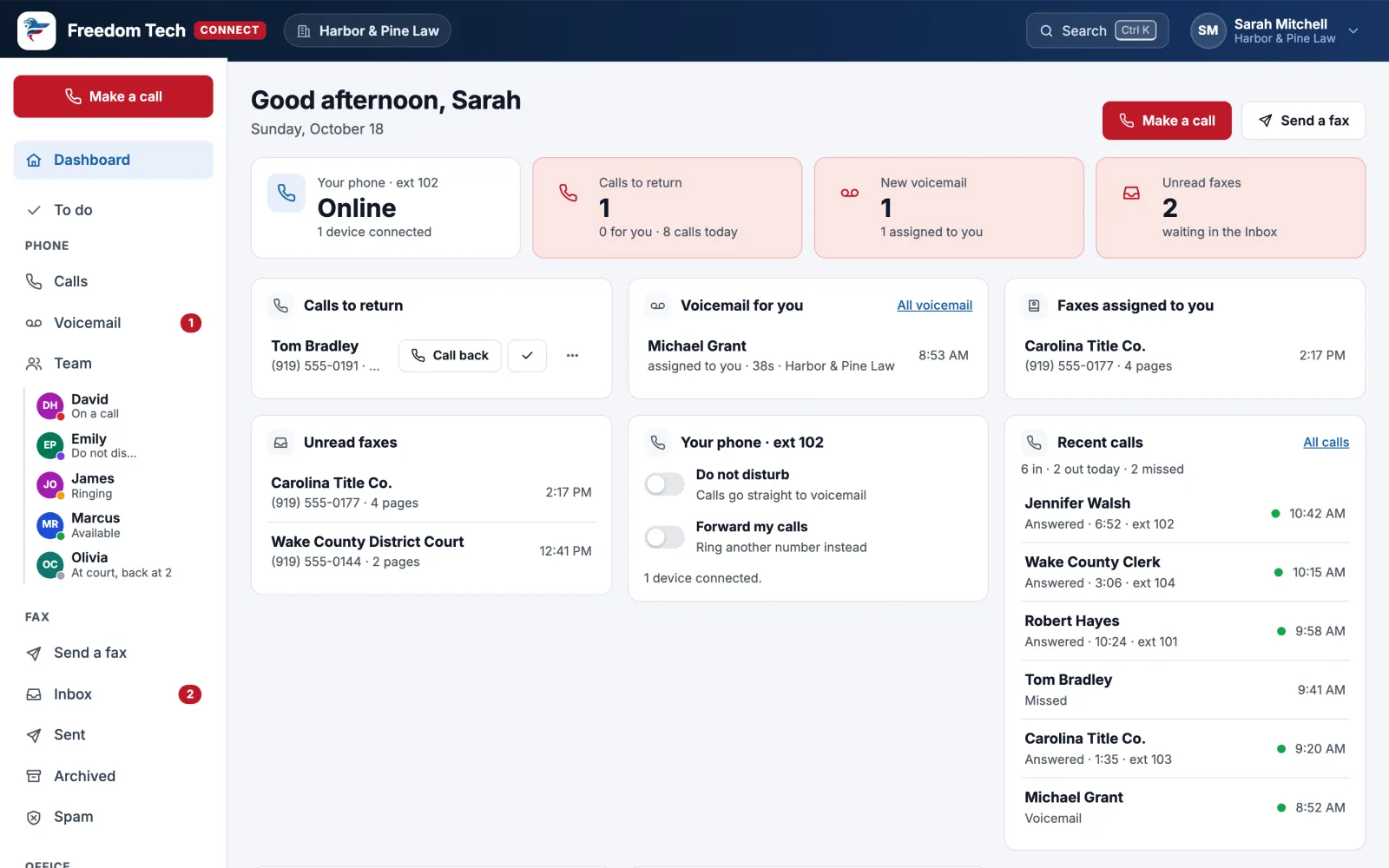
The Dashboard shows Your phone. If it says Not linked, ask Freedom Tech to link your extension so the call buttons work.
See It In Action
Freedom Tech Connect: Calls, Texts, Voicemail And Fax In One Place
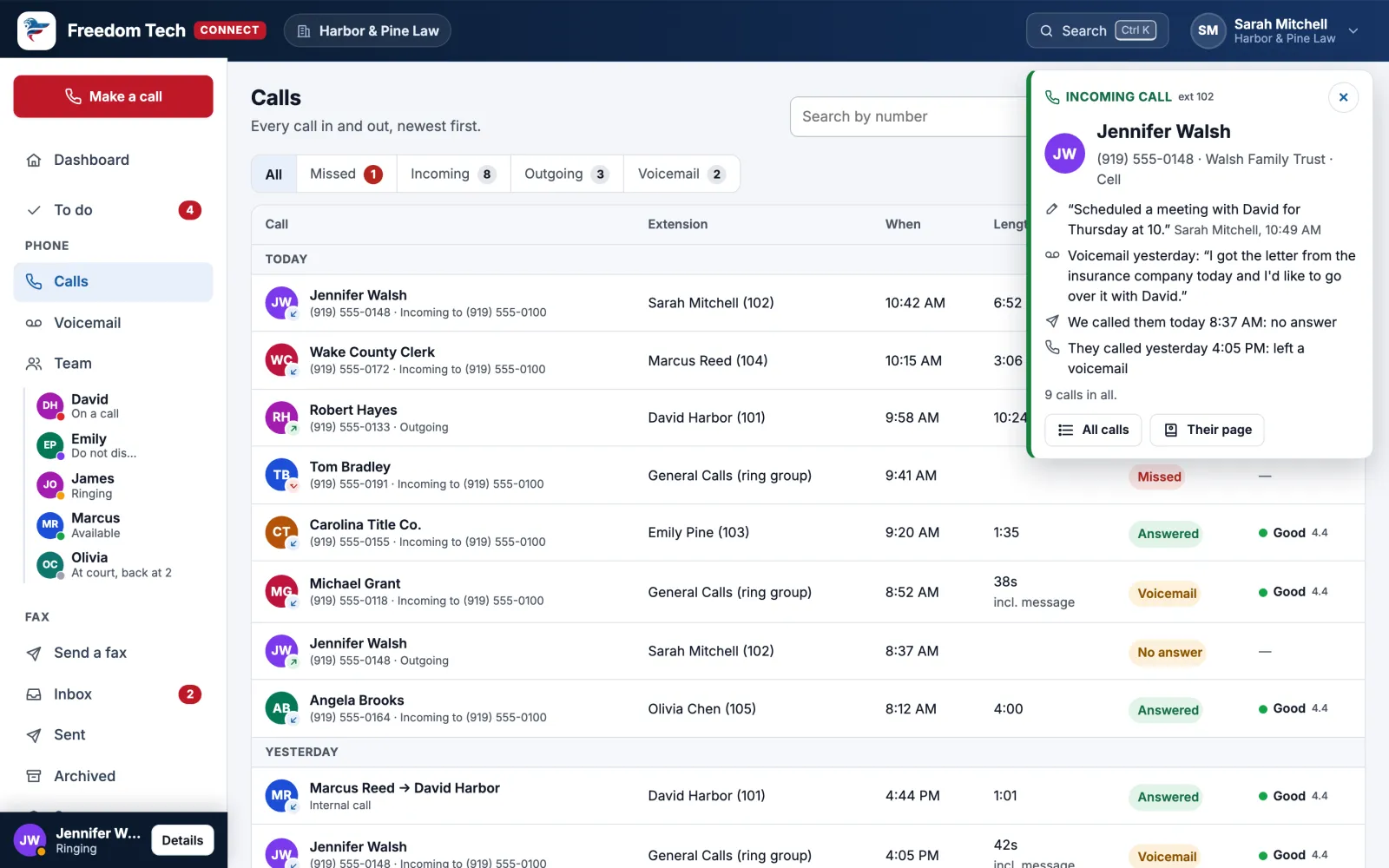
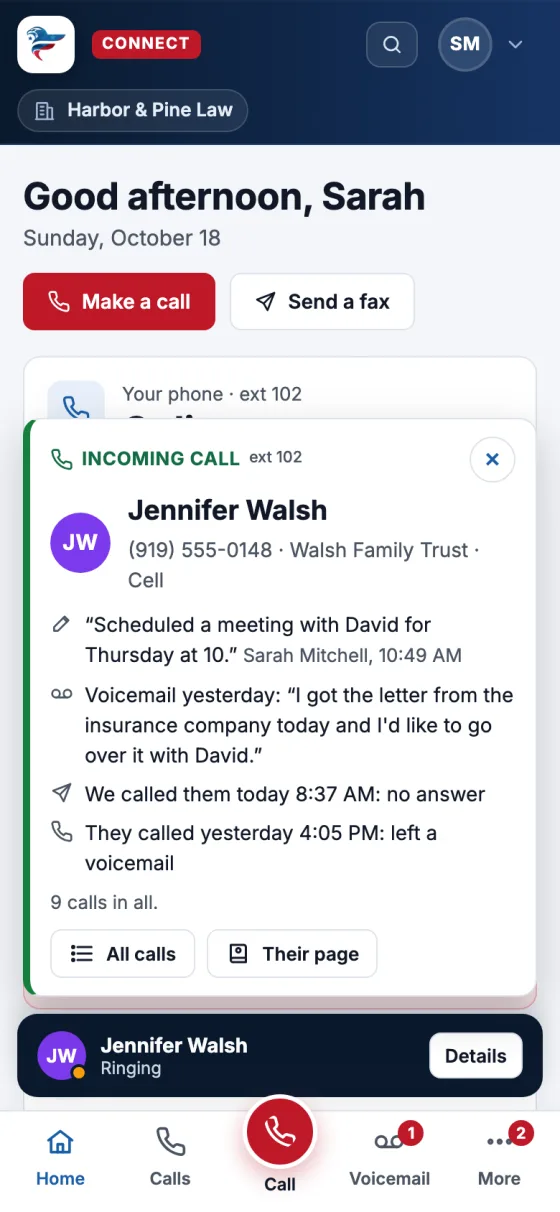
Before you pick up, Connect shows who’s calling and what happened last time. It works in your browser, in Microsoft Teams, and on your phone.
Voicemail you can read
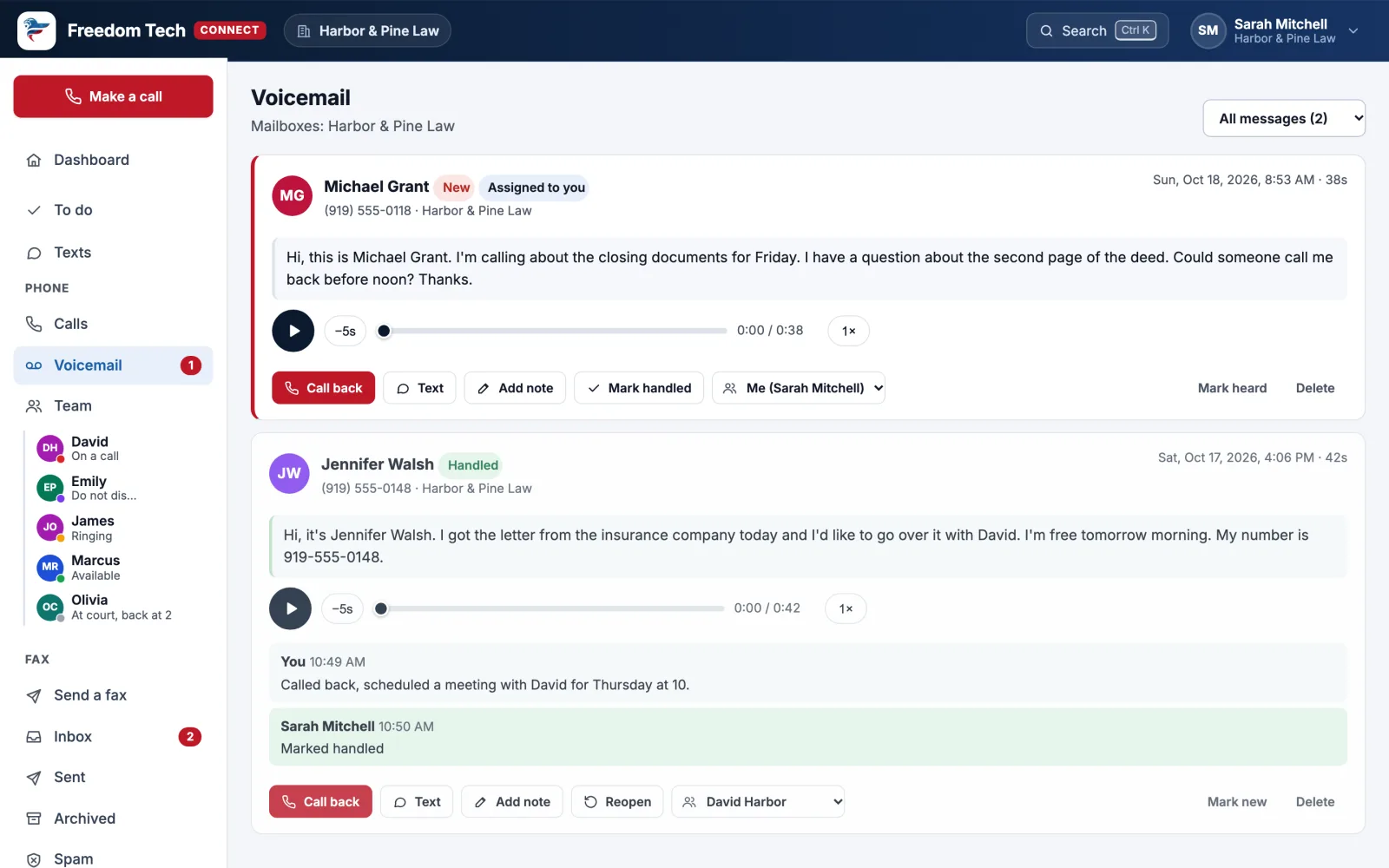
Every message written out, a player with 1.5× and 2× speed, and notes and assignments so nobody calls a client twice.
See who’s free
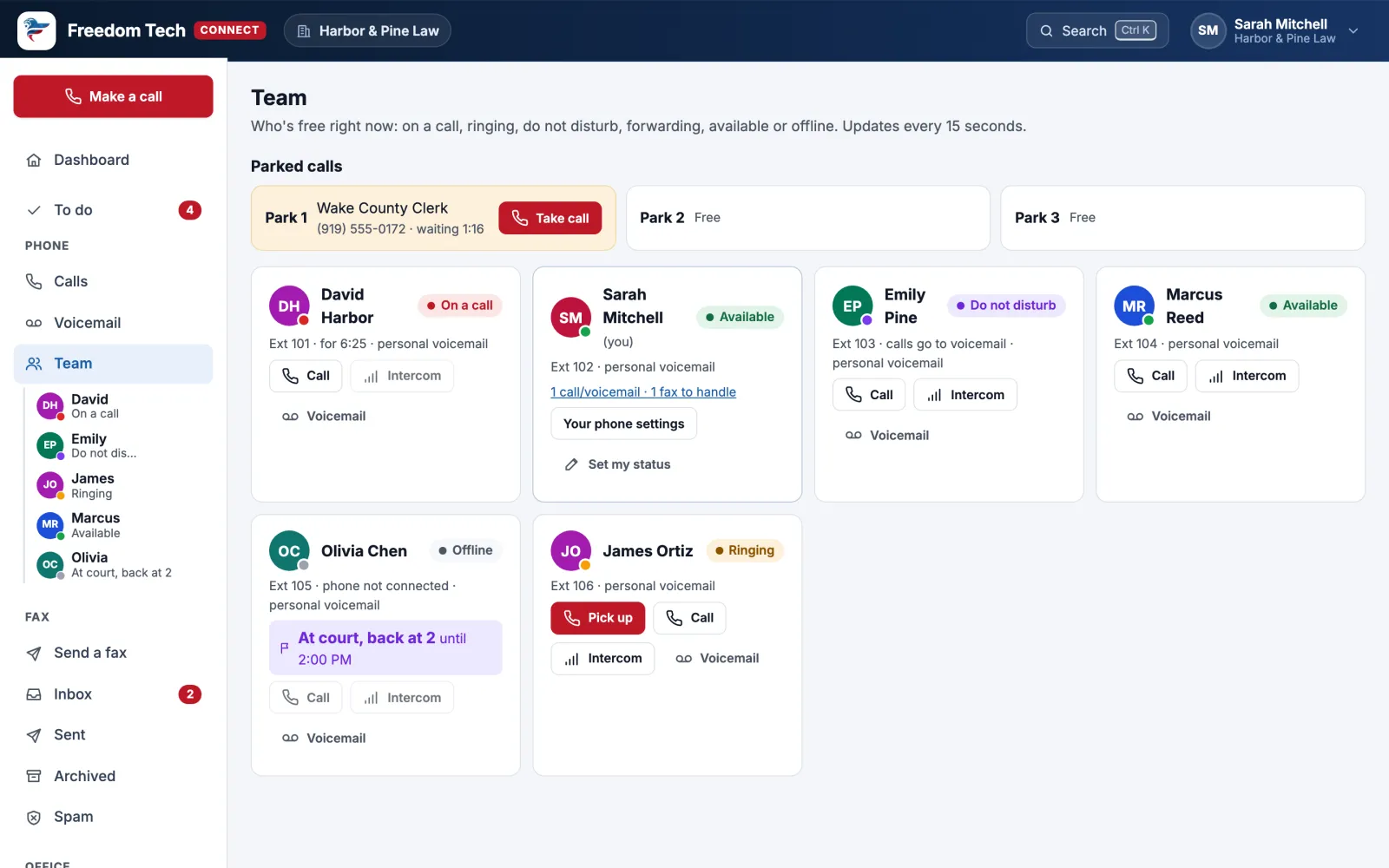
Who’s on a call, ringing, away or in court, with one-click call, intercom and parked calls.
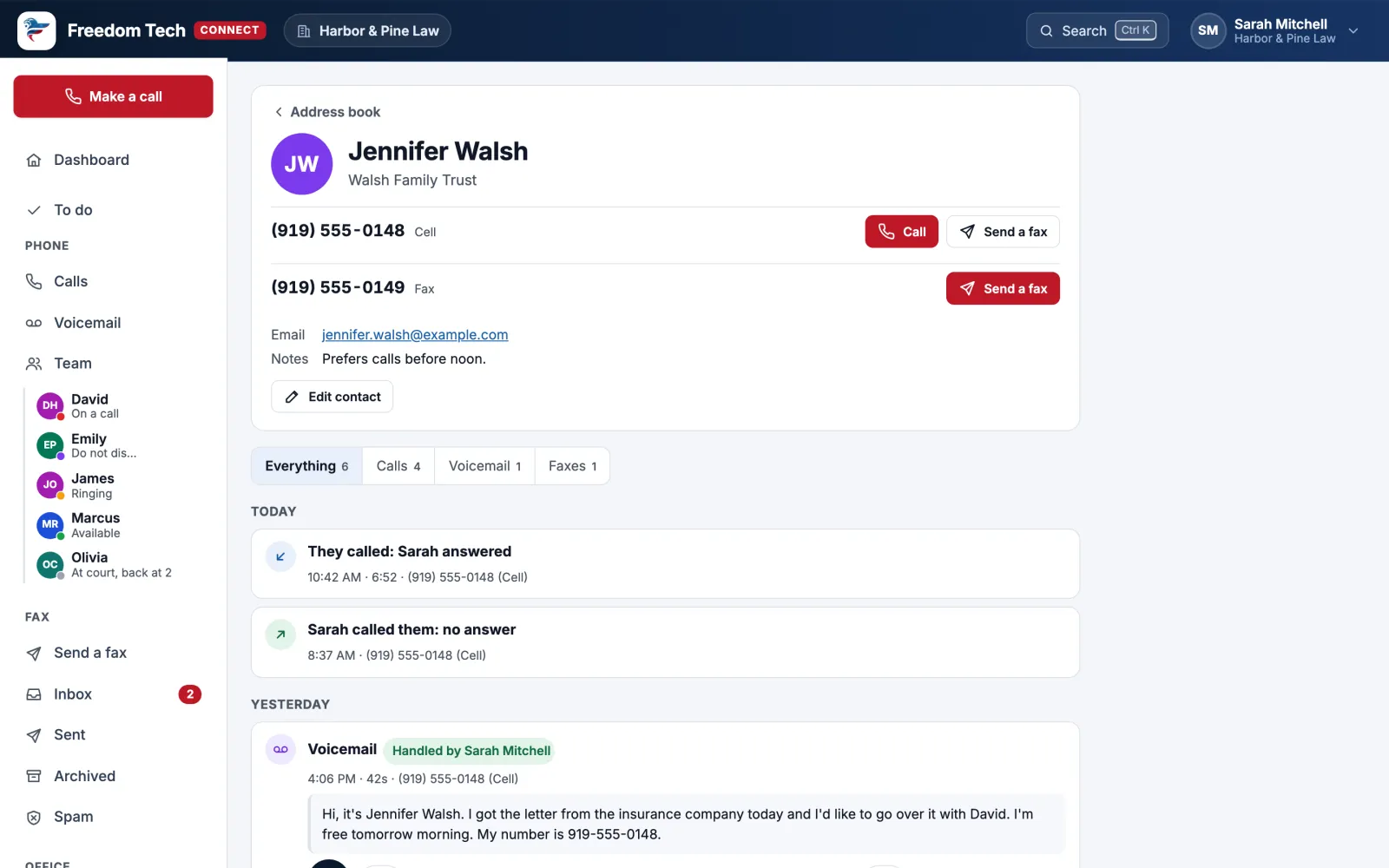
Everything with one person
Every call, voicemail and fax with a client on one page, with who’s following up.
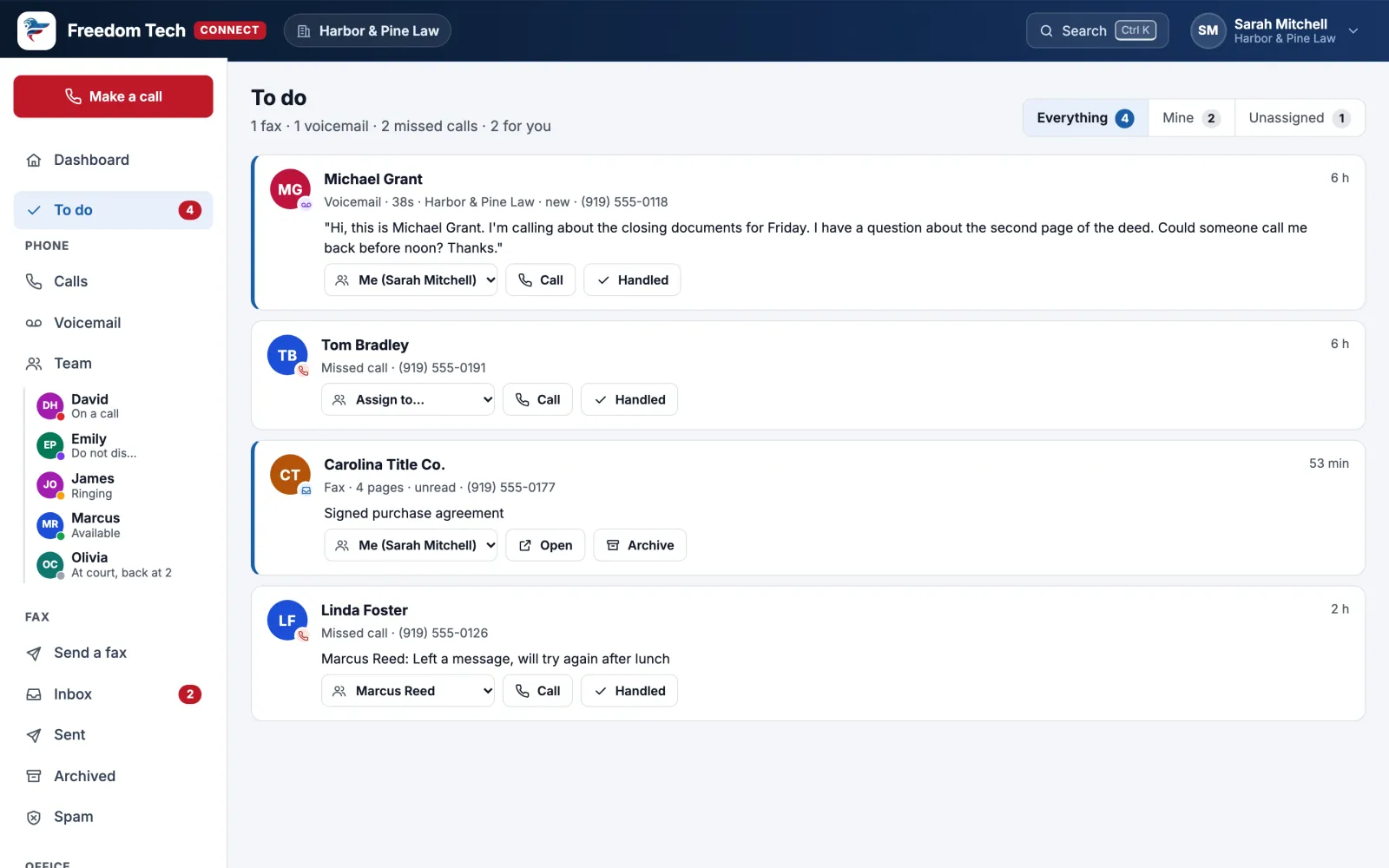
Nothing falls through
Missed calls, voicemails and faxes waiting on someone, in one list with who has each one.
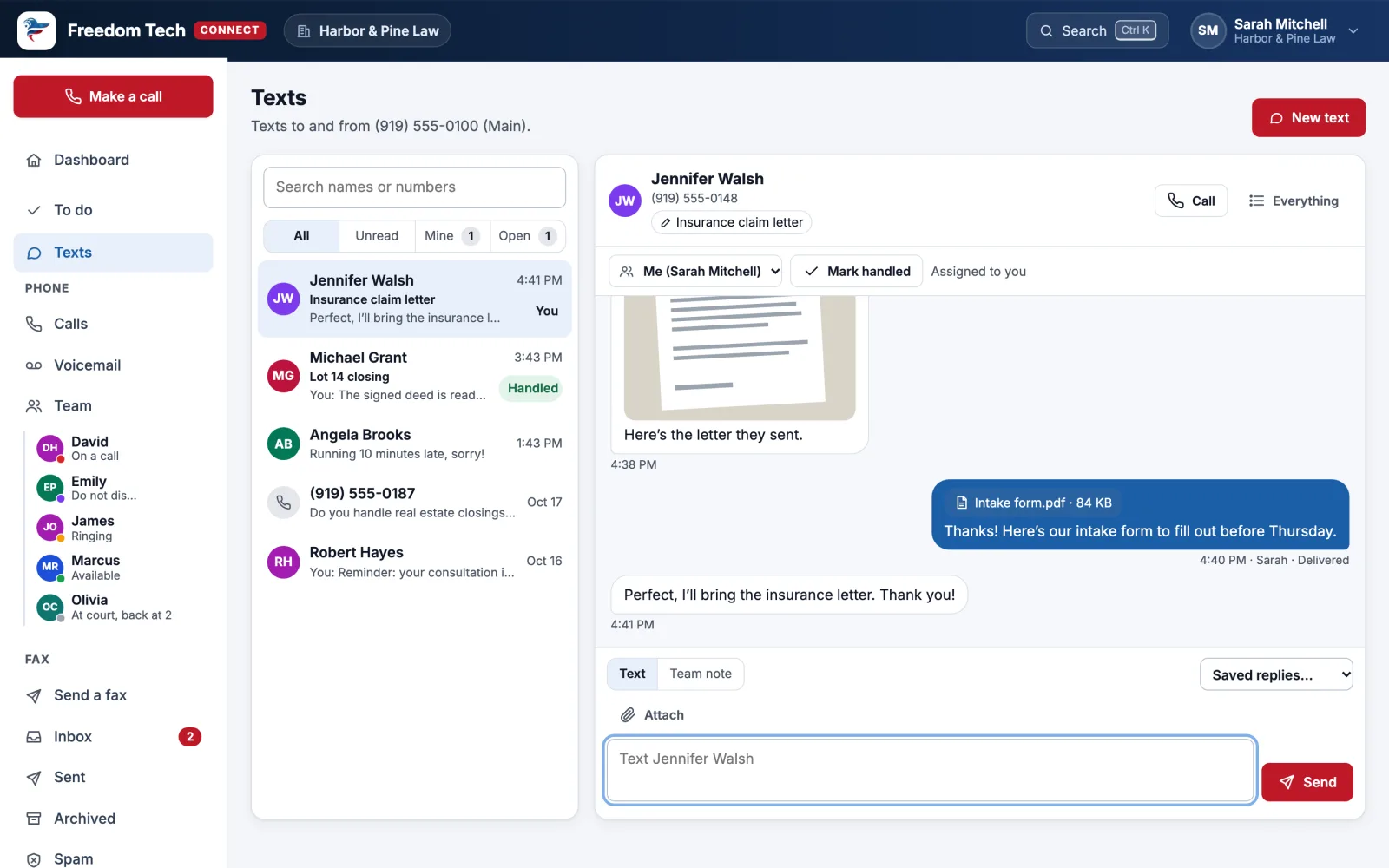
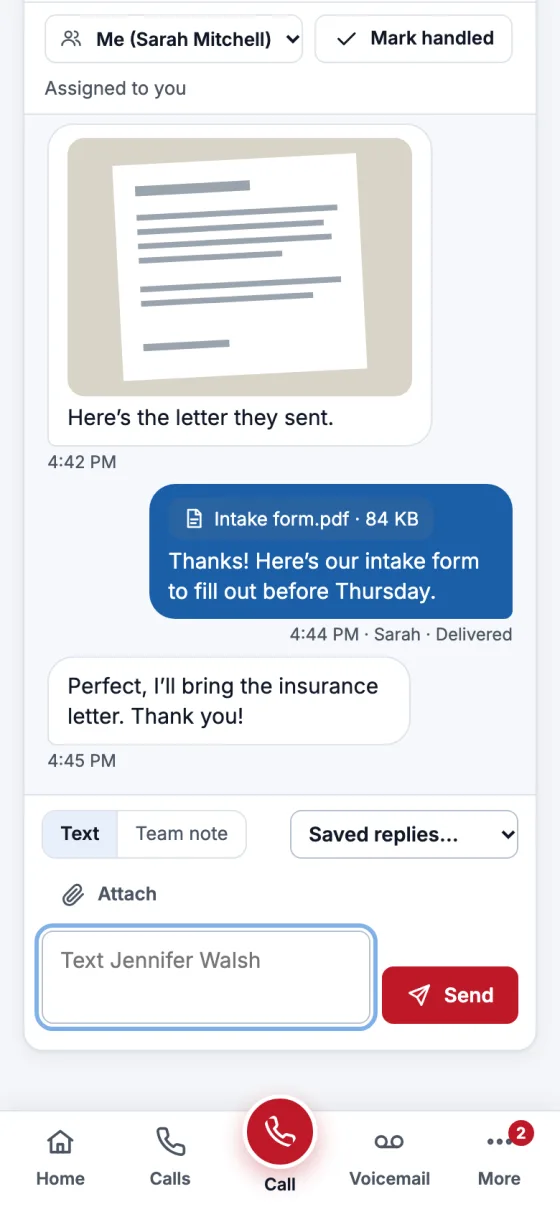
Text from your office number
One shared inbox for the team: assign a conversation, leave team-only notes, use saved replies, and send an automatic reply when you’re closed. STOP requests are honored automatically.
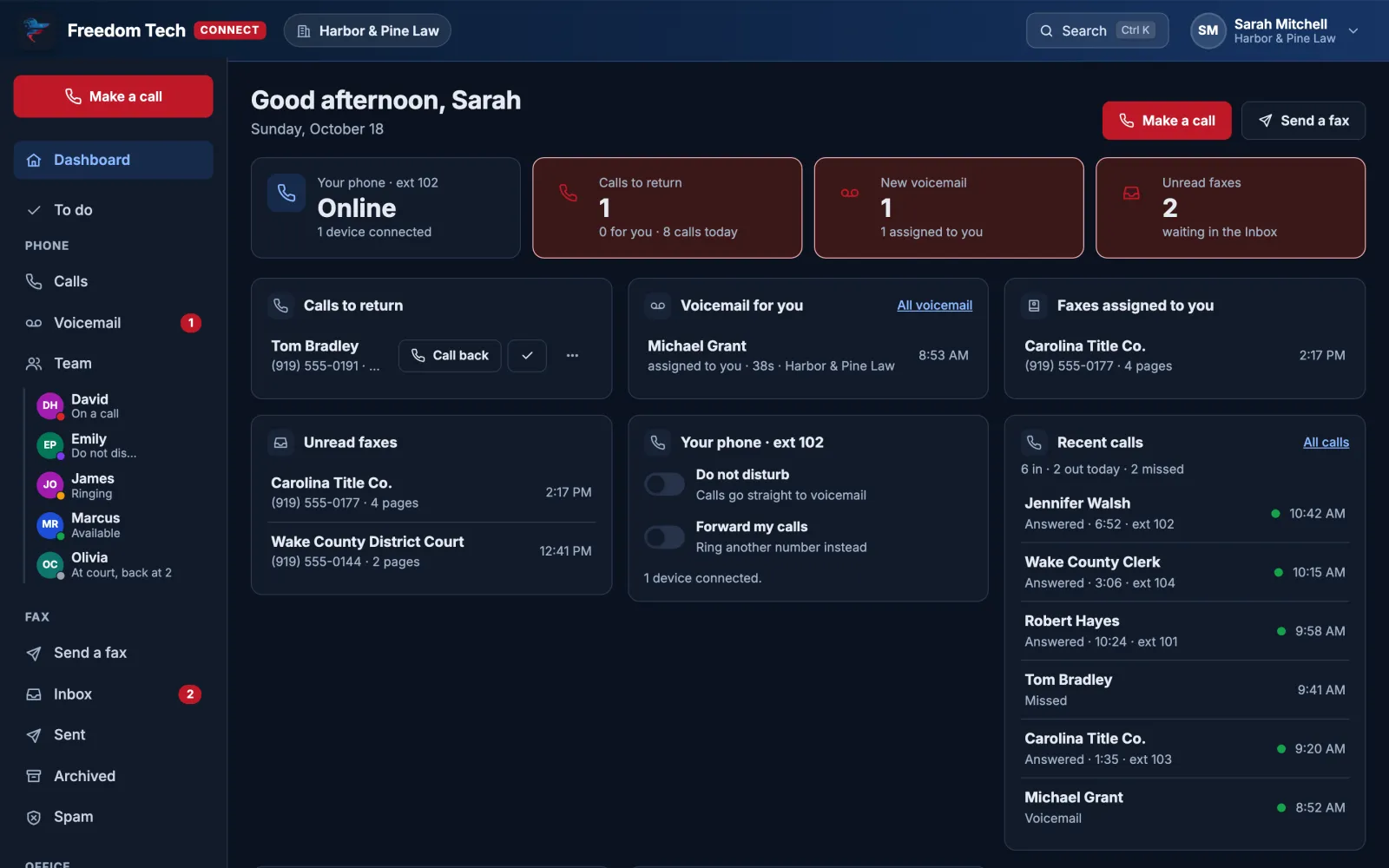
Light or dark
Connect follows your computer’s setting, or you can pick one.
On Your Phone, Too
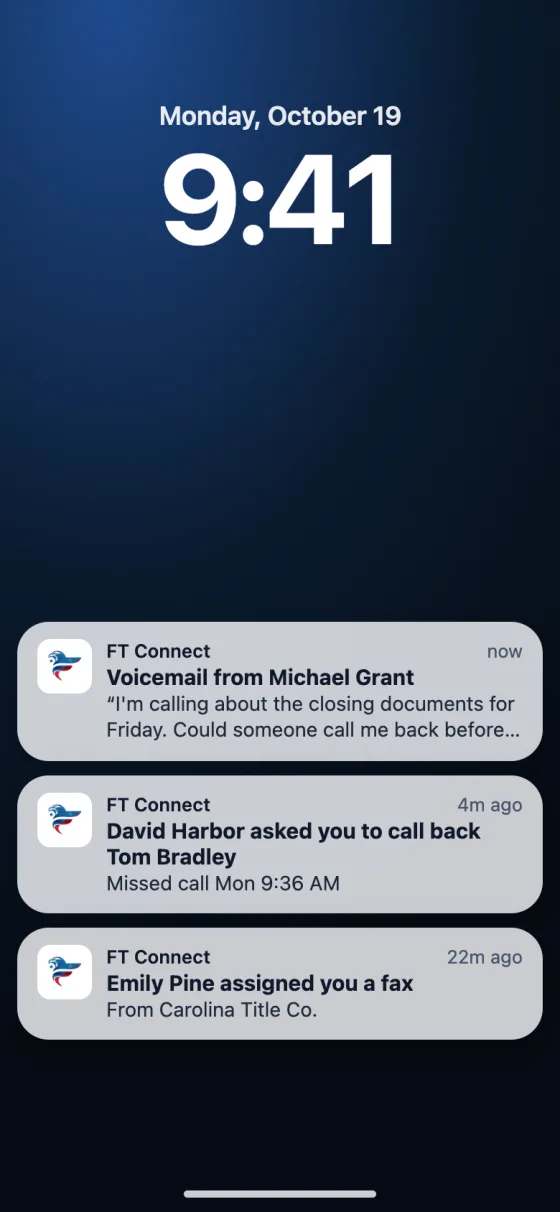
Add Connect to your iPhone or Android home screen and get a notification for each new voicemail, text and anything assigned to you, with the message written out. The same notifications can show in Microsoft Teams.
Inside Microsoft Teams
Open “Phones & Fax” in Teams, already signed in.
Notifications
On iPhone, Android, your computer, and in the Teams Activity feed.
Fax built in
Send and receive faxes in the same place, no extra portal.
Spam blocking
Report a robocaller once or twice and it never rings again.
Microsoft 365 sign-in
Your work account. No new passwords to manage.
Texting
Business texting from your office number, shared by the team.
How-To Guides
Everything You Can Do In Connect
The same guides are inside Connect under Help & support, where you can search them.
When Your Phone Rings
- Before you answer, Connect shows who is calling: their name, recent calls and voicemails, who is returning their call, and the latest note.
- A red warning appears if your office has reported the number as spam.
- While you are on a call, a bar at the bottom of the menu shows who it is and for how long.
- Want it when Connect is in the background? In My preferences, choose Also alert me when Connect is in the background.
Voicemail
- Every message is written out as text at the top, so you can read it instead of listening.
- The player has back 5 seconds, a bar you can drag, and 1×, 1.5× and 2× speed.
- Assign a message to someone, add a note (“Called back, left a message”) and mark it handled, so nobody calls the same client twice.
- New messages are also emailed with the text. To change a greeting, ask Freedom Tech.
Calls And Missed Calls
- Calls lists every call in and out: who, where it rang, how long, and how it ended. Tabs show how many are missed, incoming and outgoing.
- Click a call for details and buttons to call back, save the number, or see everything with that person.
- Missed calls can be assigned to someone, noted, and marked handled. Until then they show in To do.
- Call buttons ring your desk phone first; pick it up and the call goes through with your office’s main number as caller ID.
Team, Intercom And Park
- Each person has a colored dot: green available, red on a call, amber ringing, purple do not disturb, blue forwarding, gray not connected.
- Call, Intercom (through their speaker), leave a Voicemail without ringing them, or Pick up a call ringing on their phone.
- Parked calls shows Park 1, 2 and 3, who is waiting and for how long. Take call picks it up at your phone.
- Set a status note (“At court, back at 2”) so everyone knows. It clears itself at the time you choose.
Everything With One Person
- Click any caller’s name to open their page: their numbers with Call and Send a fax, and one timeline of every call, voicemail and fax.
- Numbers not in your address book still show the name from caller ID. Save to address book keeps it.
- Search (top of the page, or Ctrl K) finds people, calls, voicemails and faxes at once.
Spam Calls And Blocking
- Open a call and choose Report spam. When two people at your office report the same number, it is blocked before any phone rings.
- Office admins can block numbers, change how many reports it takes, or mark a number Not spam.
- Numbers in your address book can’t be reported by mistake.
Faxes
- Received faxes arrive in the Inbox and can be emailed to your office. Search finds the words printed on the pages.
- Send a fax to one or many people, with your office’s cover page, from Word, PDF, pictures or OneDrive.
- Assign, tag and add notes; sign a fax and send it back; or email it securely as a link with a one-time code.
Texting (Offices With Texting)
- Texts holds every text to and from your office’s number, one conversation per person. Click one to read and reply; Enter sends.
- Each text shows who on your team sent it and whether it was delivered. Pictures people send appear in the conversation.
- New text starts one with any US mobile number, and Text on a caller’s page opens your conversation with them.
- Assign a conversation to someone and mark it handled; open ones show in To do, and a new text reopens it. Team notes (in yellow) are seen only by your office.
- Saved replies fill in common messages, and office admins can turn on an automatic reply for texts that arrive while you’re closed.
- If someone texts STOP, texting them is turned off until they text START, as the law requires. Ask Freedom Tech to add texting for your office, including personal numbers for individual staff.
Notifications On Your Phone And In Teams
- Get a notification for each new voicemail you can hear (with the message written out) and anything assigned to you. Every received fax is optional.
- iPhone: add Connect to your Home Screen, open it from that icon, then Help & support → Turn on notifications. Android and computers: the same button, no Home Screen step.
- In Microsoft Teams, the same notifications appear in the Activity feed (the bell) and the Teams app on your phone. Pick which in My preferences.
- Tapping one opens that voicemail, call or fax in Connect.
Shortcuts And Dark Mode
- Press ? for the list of keyboard shortcuts: C make a call, / search, V voicemail, L calls, T to do, H home.
- Connect follows your computer’s light or dark setting. Choose Auto, Light or Dark under your name, then Appearance.
- On a computer, the Install button on the Help page puts Connect in its own window with a count on its icon.
If Something Isn’t Working
- My phone shows gray (not connected)
- Check the network cable and power, then wait a minute. If it stays gray, call us; we can restart it remotely.
- The call buttons are missing or say “not linked”
- Freedom Tech links your Microsoft 365 account to your extension. Ask us and we will link it.
- I don’t see Phones & Fax in Teams
- Click Apps in Teams and search for Phones & Fax. New apps can take a few hours to appear after we add them.
- No voicemail emails
- Check junk mail for noreply@freedomtech.us and mark it as not junk, then tell us who should get them.
Need A Hand?
In Connect, open Help & support and choose Open a support ticket. Or call or email the Freedom Tech support desk.
910-920-0999Email supportNot on Freedom Tech phones yet?
See how Freedom Tech business phone service, voicemail and fax work for offices like yours.